How to add Source Link to a NuGet package
In this article, I explore in detail how to add Source Link support to a library published on NuGet.
As we saw in the previous article, Source Link is a technology that aims to deliver a great debugging experience for .NET binaries, and it makes developers’ lives much easier when it’s time to troubleshoot.
In this article, we’ll see how to add Source Link support to our own libraries.
How to add Source Link to an assembly
The first step to add Source Link support to our assemblies is to install the Source Link package for the version control provider your project uses.
For the examples in this article, I’ll use my ForeverFactory library, which is hosted on GitHub. For the full list of supported providers, check the Source Link repository.
You can install SourceLink by adding the following reference to your project:
<ItemGroup>
  <PackageReference Include="Microsoft.SourceLink.GitHub" Version="1.0.0">
      <PrivateAssets>all</PrivateAssets>
      <IncludeAssets>runtime; build; native; analyzers; buildtransitive</IncludeAssets>
  </PackageReference>
</ItemGroup>
Nota
It’s critical that the PrivateAssets property is set to all for Source Link to work.
With that done, we need to configure in the project file how the symbol packages will be generated.
<PropertyGroup>
  <TargetFrameworks>net5.0;netstandard2.0;netstandard2.1</TargetFrameworks>
  <Features>strict</Features>
  <Authors>Dyego Alekssander Maas</Authors>
  <Copyright>Copyright Dyego Alekssander Maas</Copyright>
  <PackageId>ForeverFactory</PackageId>
  <Description>Forever Factory makes it super easy to build many customized objects.</Description>
  <PackageProjectUrl>https://github.com/DyegoMaas/ForeverFactory</PackageProjectUrl>
  <RepositoryUrl>https://github.com/DyegoMaas/ForeverFactory</RepositoryUrl>
  <PackageTags>ForeverFactory factory builder</PackageTags>
  <PackageLicenseExpression>MIT</PackageLicenseExpression>
  <MinVerTagPrefix>v</MinVerTagPrefix>
  <EmbedUntrackedSources>true</EmbedUntrackedSources>
  <PackageIcon>icon_128x128.png</PackageIcon>
  <DebugType>full</DebugType>

  <PublishRepositoryUrl>true</PublishRepositoryUrl>       <!-- 1 -->
  <EmbedUntrackedSources>true</EmbedUntrackedSources>     <!-- 2 -->
  <IncludeSymbols>true</IncludeSymbols>                   <!-- 3 -->
  <SymbolPackageFormat>snupkg</SymbolPackageFormat>       <!-- 4 -->
</PropertyGroup>- Sets the repository URL to be included in the symbol package metadata
- Tells the build system to embed files that took part in the build but aren’t tracked by version control
- Tells the build system to generate a symbol package in addition to the package with the binaries
- Sets the symbol package format to
snupkg
With these settings in place, we can generate a package locally with the following commands:
dotnet build -c Release
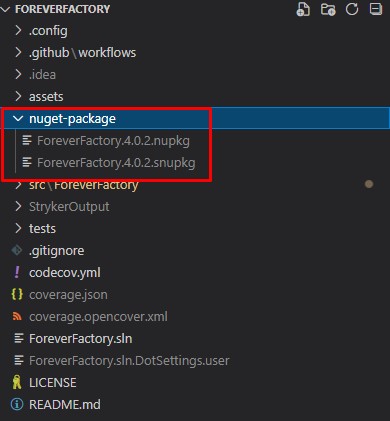
dotnet pack src/ForeverFactory/ForeverFactory.csproj -c Release --no-build -o nuget-package
With this dotnet pack command, we generate our NuGet package in the nuget-package directory, as the following image shows:
How to validate NuGet packages with NGPE
Before publishing our package, we can validate it with NuGet Package Explorer (NGPE).

With NGPE, we can confirm that the required metadata was embedded in the package:
- The package contents, with the binaries, the project icon, and the documentation XMLs
- In the Repository section, we find the repository URL and the current commit
- In the Health section, the tool flags two problems:
- The package was generated from a non-deterministic build
- Some compiler flags are missing
Importante
We’ll come back to these two points later in the article. Now let’s check what’s inside the generated symbol package:
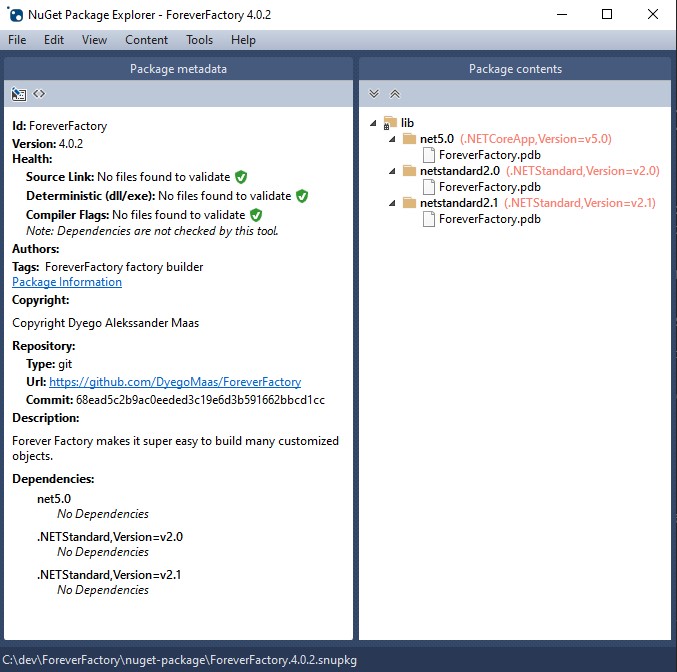
As we can see in the file, the symbol package contains the PDB files for debugging, plus the metadata tying the repository and commit to the package.
Configuring deterministic builds
By default, .NET builds are non-deterministic. That means every build produces binaries and symbols that are slightly different from previous builds.
They differ because they include metadata about the machine that ran the build, timestamps, file locations on that machine, and much more. This information is mainly there to make local debugging of those binaries easier.
That’s a problem for a published NuGet package, because there’s no way to guarantee the package is what it claims to be.
Importante
The recommendation here is to make the build that publishes the package to the NuGet servers, running in a CI pipeline, produce deterministic builds.
This configuration is done through the
<PropertyGroup>
  <TargetFrameworks>net5.0;netstandard2.0;netstandard2.1</TargetFrameworks>
  <Features>strict</Features>
  <Authors>Dyego Alekssander Maas</Authors>
  <Copyright>Copyright Dyego Alekssander Maas</Copyright>
  <PackageId>ForeverFactory</PackageId>
  <Description>Forever Factory makes it super easy to build many customized objects.</Description>
  <PackageProjectUrl>https://github.com/DyegoMaas/ForeverFactory</PackageProjectUrl>
  <RepositoryUrl>https://github.com/DyegoMaas/ForeverFactory</RepositoryUrl>
  <PackageTags>ForeverFactory factory builder</PackageTags>
  <PackageLicenseExpression>MIT</PackageLicenseExpression>
  <MinVerTagPrefix>v</MinVerTagPrefix>
  <PackageIcon>icon_128x128.png</PackageIcon>
  <DebugType>full</DebugType>

  <PublishRepositoryUrl>true</PublishRepositoryUrl>
  <EmbedUntrackedSources>true</EmbedUntrackedSources>
  <IncludeSymbols>true</IncludeSymbols>
  <SymbolPackageFormat>snupkg</SymbolPackageFormat>

  <Deterministic>true</Deterministic> <!-- 1 -->
  <ContinuousIntegrationBuild Condition="'$(GITHUB_ACTIONS)' == 'true'">true</ContinuousIntegrationBuild> <!-- 2 -->
</PropertyGroup>- Tells the build system to use deterministic builds whenever possible
- Marks the build as running in a continuous integration pipeline. Note that this property is only set to
truewhen the build runs in a GitHub Actions workflow, as signaled by theGITHUB_ACTIONSenvironment variable being set totrue
As explained in this repository, deterministic builds only happen in continuous integration builds.
We can simulate a CI build locally with the following command:
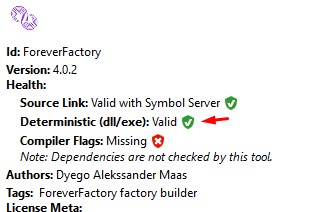
dotnet build /p:ContinuousIntegrationBuild=trueOpening this new build in NGPE, we can confirm that the new package was produced by a deterministic build.
The next step is to publish the package. As an example, here’s the release pipeline for my ForeverFactory project:
name: Release
on:
push:
  tags:
  - '*.*.*'
jobs:
release:
  strategy:
    fail-fast: false
  runs-on: ubuntu-latest
  steps:
    - uses: actions/checkout@v2
    - name: Setup dotnet 5.0
      uses: actions/setup-dotnet@v1
      with:
        dotnet-version: 5.0.x
    - name: Clean
      run: dotnet clean -c Release
    - name: Build
      run: dotnet build -c Release
    - name: Test
      run: dotnet test -c Release -r nuget-package --no-build -l trx --verbosity=normal
    - name: Pack
      run: dotnet pack src/ForeverFactory/ForeverFactory.csproj -c Release --no-build -o nuget-package
    - name: Publish to Nuget.org
run: dotnet nuget push nuget-package/*.nupkg -k ${{ secrets.NUGET_API_KEY }} -s https://api.nuget.org/v3/index.json # 1- When we publish the
.nupkgfiles, the NuGet CLI detects the.snpkgsymbol packages and publishes them too
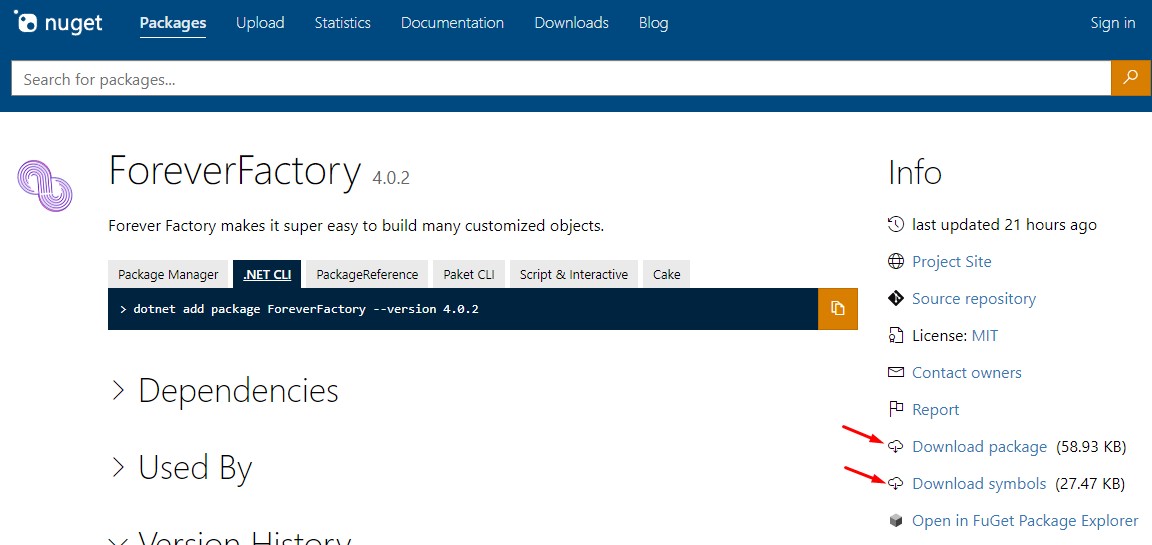
The first thing to confirm is whether the symbols are being published correctly to the project’s feed on NuGet.org:
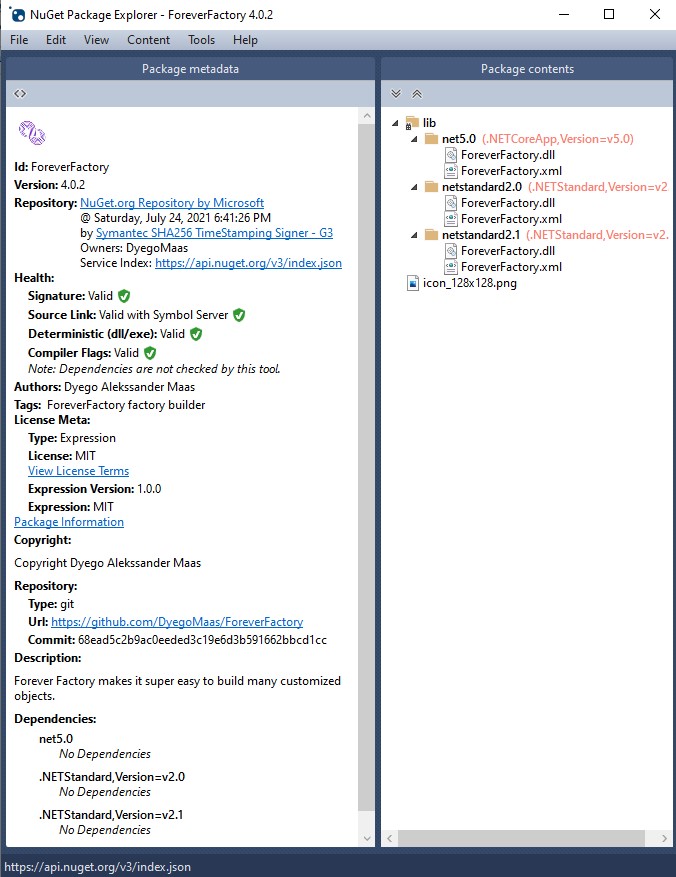
Finally, we can validate the published package with NGPE. Just open the package from the feed using File -> Open from Feed...:
Conclusion
By following these steps, we’ve enabled Source Link in our library, making it much easier to debug and making life easier for its users.