
Creating a local K8s cluster with Kind
In this article, I show how to create a Kubernetes cluster for local development using the Kind and ctlptl tools.
There are plenty of cases where setting up a local Kubernetes cluster comes in handy. When we’re learning Kubernetes for the first time, for example, running the whole thing locally helps a lot. Or maybe we just want to try out some Kubernetes feature without affecting a production cluster.
Either way, we need to pick a local cluster solution, and there are several to choose from:
Of these options, the only one I’ve never tried is Microk8s. Kind is quite lightweight. Not as lightweight as k3d, but by far much easier to install and configure. In this article we’ll focus on Kind.
Kind
Kind was originally created to test Kubernetes itself. It runs Kubernetes nodes in Docker containers, and it’s useful for local development and even for CI.
Installation
To install Kind, you need Docker and Go installed. The easiest way to install it is by running the following command in the terminal:
go get sigs.k8s.io/kind@v0.10.0go get will place kind in $GOPATH/bin. You may need to add Kind’s directory to your $Path.
Kind’s documentation lists other ways to install it with package managers, such as Chocolatey on Windows or brew on Mac.
Once it’s installed, we’re ready to create our first cluster.
Creating our first cluster
Creating a new cluster is as easy as running the kind create cluster command:
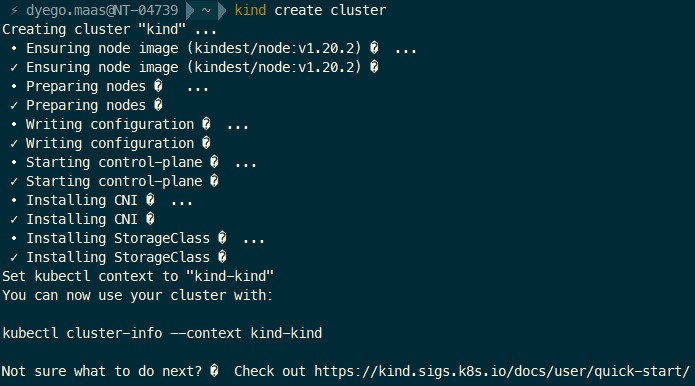
We can also create other clusters by specifying a name with the kind create cluster --name kind-2 command.
And now we can list our clusters with the kind get clusters command:

Listing the Docker containers with the docker ps command, we can see that Kind started a Kubernetes Control Plane inside a container:

Interacting with a Kind cluster
To interact with a Kind cluster, just pass the cluster name as the context to kubectl:
kubectl cluster-info --context kind-kind
kubectl cluster-info --context kind-kind-2
To deploy an application to the cluster, we first need to load the base image onto the cluster’s nodes with the kind load command.
To load a Docker image, we can use the kind load docker-image my-custom-image command. By default, the image is loaded into every cluster, unless we specify the cluster with the --name <cluster-name> argument.
Alternatively, we can load an image archive all at once with the kind load image-archive /my-image-archive.tar command. These archives can be generated with the docker save [OPTIONS] image [image2...] command.
This enables a workflow like this one:
docker build -t my-custom-image:unique-tag ./my-image-dir
kind load docker-image my-custom-image:unique-tag
kubectl apply -f my-manifest-using-my-image:unique-tag
Working with a local Docker Registry
There are two ways to set up a local Docker registry with Kind. The first is to run a script provided in the documentation:
#!/bin/sh
set -o errexit

# create registry container unless it already exists
reg_name='kind-registry'
reg_port='5000'
running="$(docker inspect -f '{{.State.Running}}' "${reg_name}" 2>/dev/null || true)"
if [ "${running}" != 'true' ]; then
docker run \
  -d --restart=always -p "127.0.0.1:${reg_port}:5000" --name "${reg_name}" \
  registry:2
fi

# create a cluster with the local registry enabled in containerd
cat <<EOF | kind create cluster --config=-
kind: Cluster
apiVersion: kind.x-k8s.io/v1alpha4
containerdConfigPatches:
- |-
[plugins."io.containerd.grpc.v1.cri".registry.mirrors."localhost:${reg_port}"]
  endpoint = ["http://${reg_name}:${reg_port}"]
EOF

# connect the registry to the cluster network
# (the network may already be connected)
docker network connect "kind" "${reg_name}" || true

# Document the local registry
# https://github.com/kubernetes/enhancements/tree/master/keps/sig-cluster-lifecycle/generic/1755-communicating-a-local-registry
cat <<EOF | kubectl apply -f -
apiVersion: v1
kind: ConfigMap
metadata:
name: local-registry-hosting
namespace: kube-public
data:
localRegistryHosting.v1: |
  host: "localhost:${reg_port}"
  help: "https://kind.sigs.k8s.io/docs/user/local-registry/"
EOF
An easier way is to use the ctlptl tool.
ctlptl
ctlptl (pronounced “cattle paddle”) is a CLI built by the Tilt team to make setting up local clusters easier. It works with Kind, Docker for Desktop and Minikube.
It can be installed on Linux and Mac with Homebrew:
brew install tilt-dev/tap/ctlptlAnd on Windows with Scoop:
scoop bucket add tilt-dev https://github.com/tilt-dev/scoop-bucket
scoop install ctlptl
Once it’s installed, we can use it to create a Kind cluster:
ctlptl create cluster kindOr better yet, a cluster with a Docker registry already configured:
ctlptl create cluster kind --registry=ctlptl-registry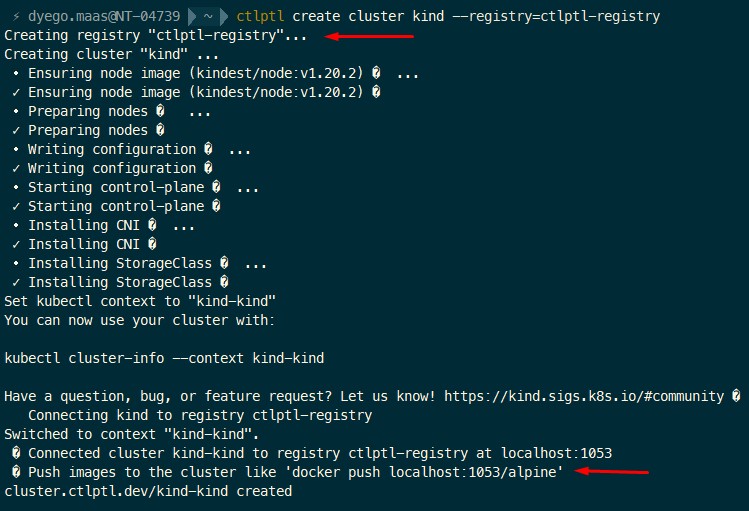
As the image above shows, on top of creating the cluster, ctlptl also created a Docker registry and printed instructions on how to use it at the end.
The registry was created along the same lines as the script above, except that ctlptl automatically picks an available port for the registry.

Now we can list the clusters through ctlptl and check that the cluster and the registry are linked:
ctlptl get clusters
And now the Kind cluster is ready to use.
If we want to delete the cluster, that’s easy to do with the ctlptl delete cluster cluster-name command.